How I Set Up Kryven Vault
This is the exact setup I use, and how I would set up yours if it were mine. Start with My System, then work through the sections one at a time. Each one ends with a single step you can do right now.
My System
Before the categories, here is the setup I recommend, because it is the one I use. Three apps, each holding only what it is built for: Apple Passwords for logins and 2FA, Kryven Vault for documents, and Kryven Legacy for the roadmap my family would need in an emergency. No overlap, no single point of failure.
Inside Vault, the one decision that makes everything else click is how you name your groups. Name them after people, not topics. Naming groups by person does two jobs at once: it tells you whose document it is, and it hands that person their own copy on their own phone.
- A group for yourself, holding your personal documents
- A group for your spouse or partner, shared so they have their own copy
- A Family group for the joint documents either of you might need
- A group for each child, so their documents are on their phone when they need them
Start here: Create one group, you and your spouse or partner, before you add a single document. The rest of this guide is how I fill it in.
Get Started
The first time you open Vault on iPhone, Get Started offers two ways in, so you never stare at an empty screen. If your documents already live in a password manager, import them. If not, Start Fresh shows a short list of the documents most people end up needing, grouped by category, and you pick the ones that apply. Vault skips anything you already have and files the new entries under a personal group you name, ready for you to fill in.
- Import from 1Password, Bitwarden, LastPass, or Dashlane in one pass
- Or Start Fresh: choose from common documents and Vault creates the entries
- Documents you already have are skipped, so nothing is duplicated
- Not ready? Skip for now; you can add documents or import from Settings at any time
Start here: Run Start Fresh, pick your passport, license, and health insurance, and name the group after yourself. You now have three entries waiting for their details.

Credit Cards & Bank Accounts
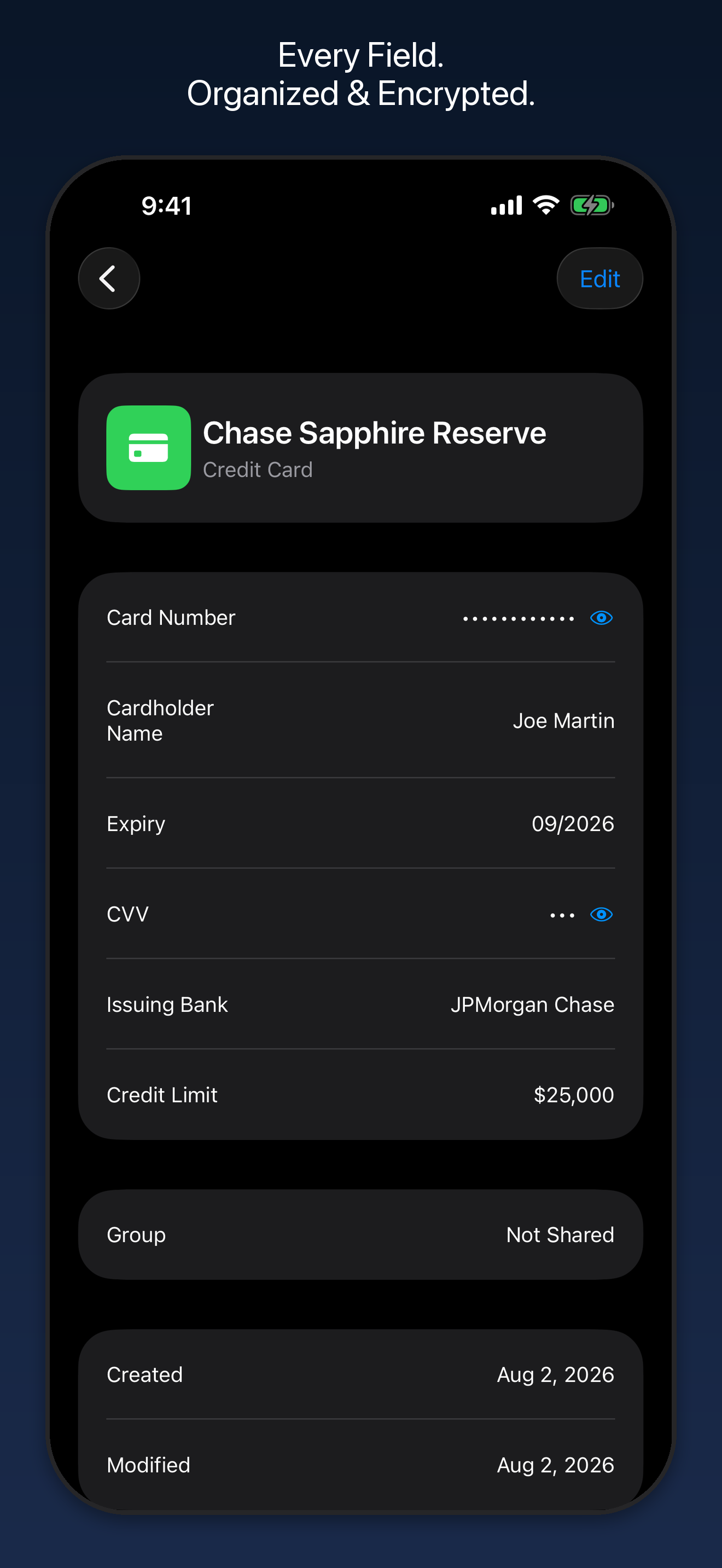
This isn't about storing card numbers for online shopping, Apple Passwords handles autofill. This is the reference info you need when you're on the phone, filling out a form, or dealing with something offline. I keep every card with its issuer, last four, expiration, and customer service number, so when one is compromised I can call the bank without digging through email. For bank accounts I keep routing and account numbers, the branch address, and the phone number, ready for a direct deposit, a wire, or a new-service form.
- Save each card's issuer, last four, expiration, and support number
- Note which cards autopay which bills, so you know what breaks if you cancel one
- Keep routing and account numbers on hand for deposits, wires, and forms
- Tap any value to copy it, and Vault confirms with a quick "Copied"
Start here: Add the cards and accounts you use most, with their customer service numbers. You'll reach for it the first time you're on hold with a bank.
Passports, IDs & Driver's License
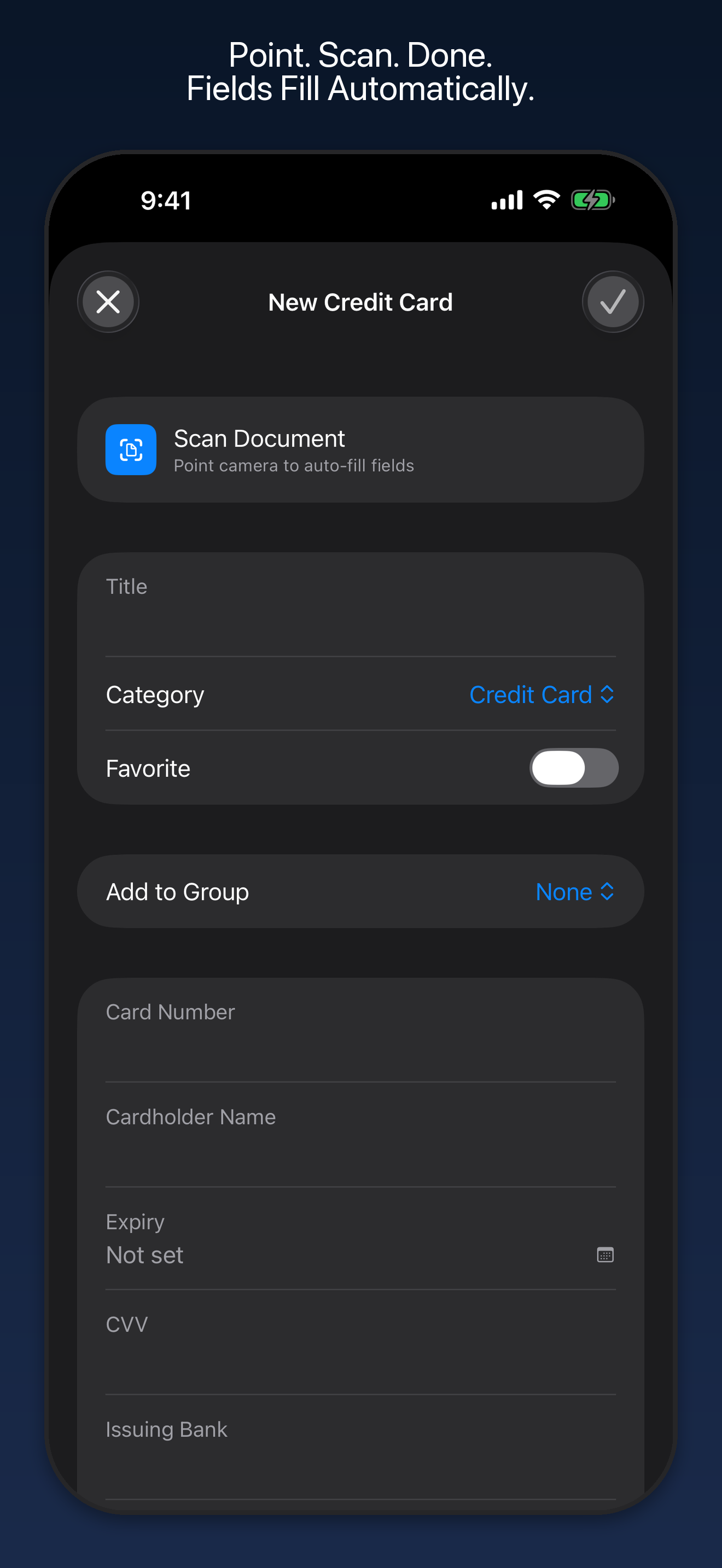
Every time I travel, someone asks for a passport number before I've opened my bag. I store every family member's passport with its number, dates, and issuing country, our driver's licenses, and identity documents like national IDs. When a form wants the number, I pull it from Vault instead of finding the physical document. I set expiration reminders too, since some countries require six months of passport validity and a license renewal can sneak up on you.
- Store passport number, dates, and issuing country for each family member
- Keep driver's license number, class, and dates for every driver
- Tap Scan Document in the form: Smart Scan reads a passport's machine-readable zone or a license barcode and fills the fields
- With Apple Intelligence, the row reads “Checking on device…” and a moment later the fields it filled or corrected are highlighted. Anything you typed stays as it is
- Review what it read, fix anything, then save
Start here: Add your passport with Smart Scan, then your license, and turn on both expiration reminders. Next time you're filling out a travel form or renting a car, it's already there.
Insurance & Memberships
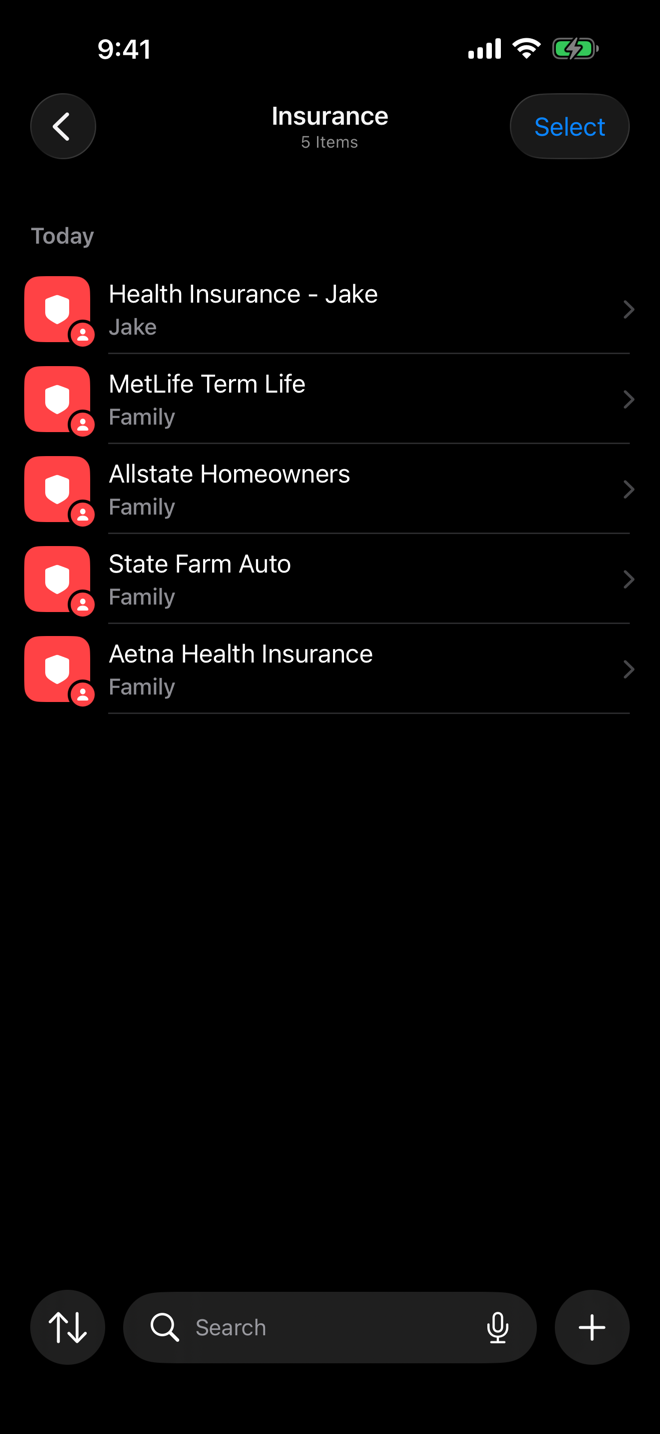
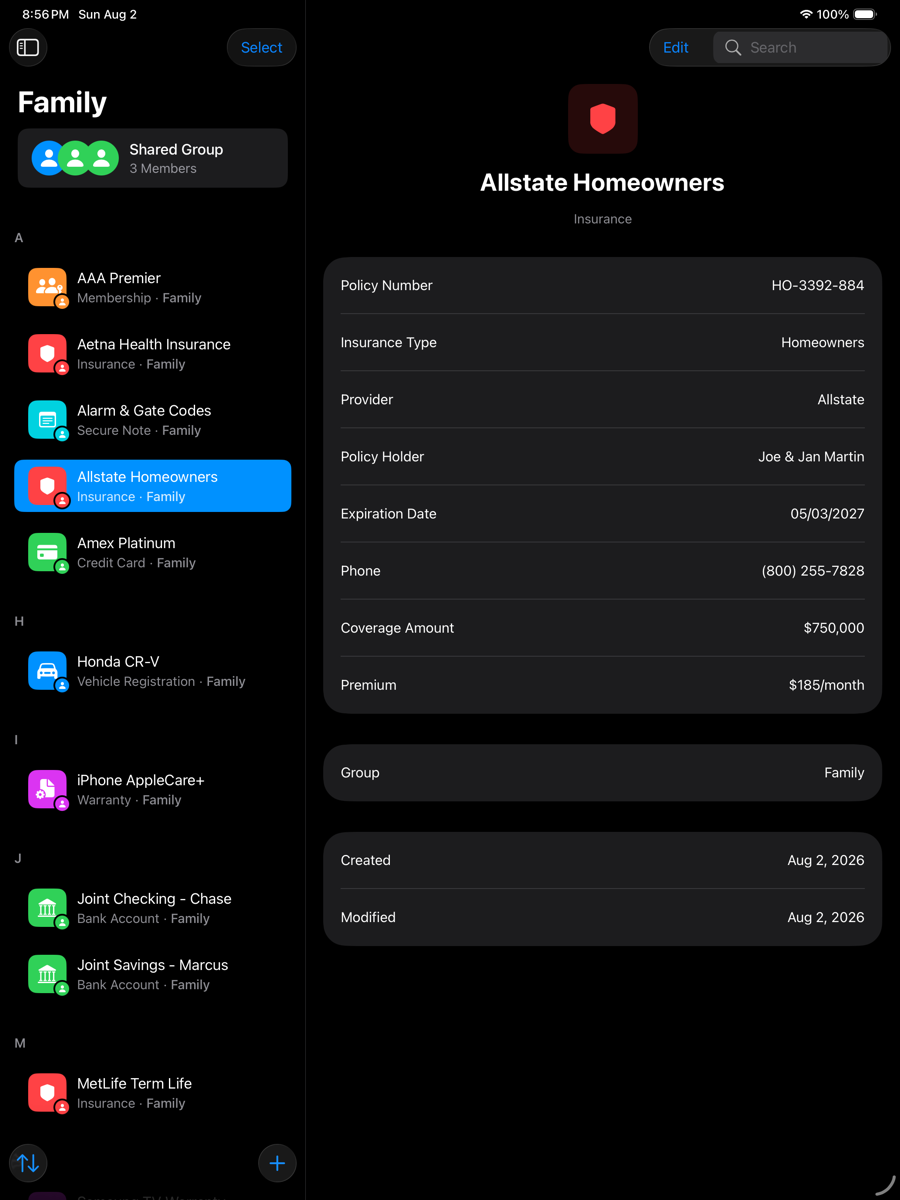
You never need insurance info when things are calm. You need it in a parking lot after a fender bender or in an ER waiting room. Every policy goes in: health, auto, home, life, umbrella, with policy and group numbers, the claims and agent phone lines, and a note on coverage. Memberships work the same way, an organization, a member number, a renewal date, and a support line you can never find, so Costco, AAA, the gym, and loyalty programs all live here too.
- Save policy number, group number, claims line, and agent line per policy
- Note deductibles and coverage limits so you're not guessing with an adjuster
- Store membership numbers, tiers, renewal dates, and support lines
- Set renewal reminders so nothing auto-charges for something you've dropped
Start here: Add health and auto insurance, then the two memberships you use most, with the claims and support phone numbers.
Warranties, Vehicle Registration & Secure Notes
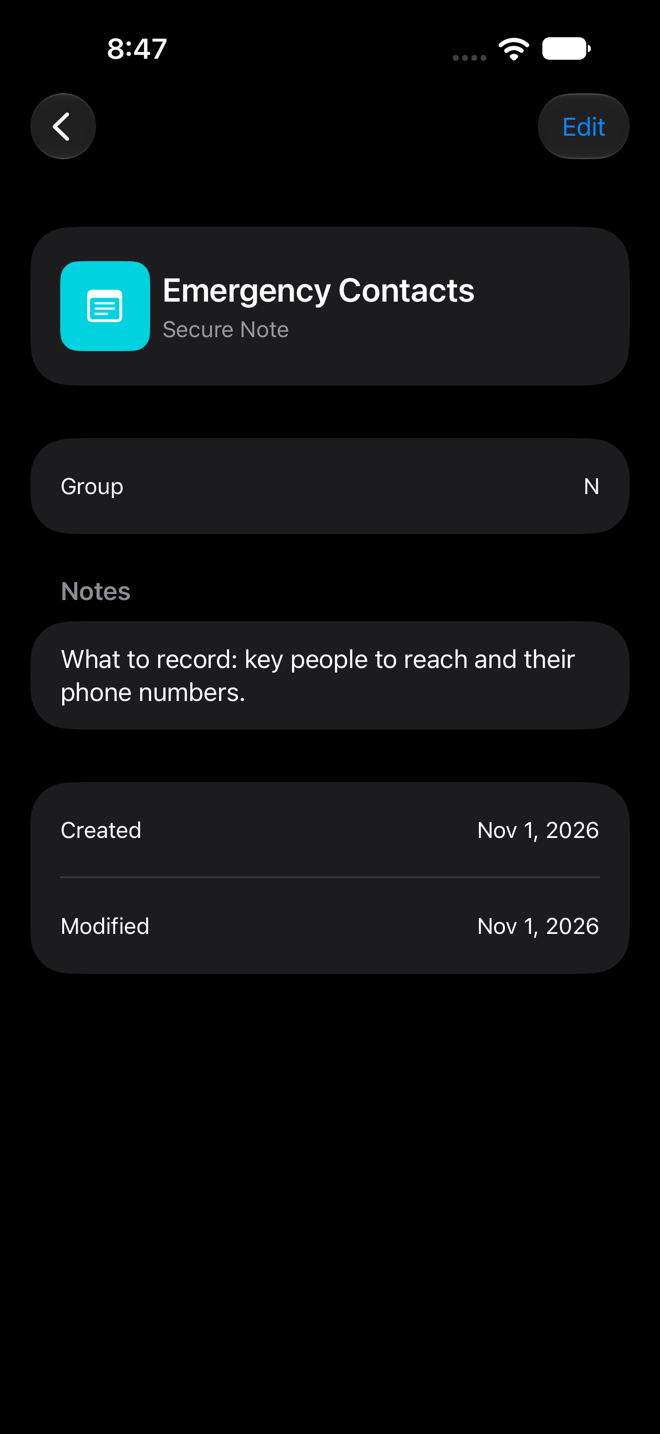
Warranties are the documents everyone forgets until something breaks. Every major purchase gets an entry with the purchase date, warranty end date, retailer, and support number, so when the dishwasher dies at eleven months I confirm coverage and call in two minutes. Vehicle registration lives here too, with the registration number, VIN, plate, and expiration. Secure Notes is the encrypted catch-all for the sensitive things that aren't logins: safe and alarm combinations, gate codes, recovery codes, and short instructions like where the water shutoff is.
- Record each warranty's dates, retailer, and claim number, with an expiration reminder
- Keep registration number, VIN, plate, and expiration for each vehicle
- Use Secure Notes for combinations, codes, recovery codes, and short instructions
- Notes support simple formatting like bold, italic, and links
Start here: Add one warranty with its expiration date, then create a secure note for your home alarm or safe combination.
Optional Categories
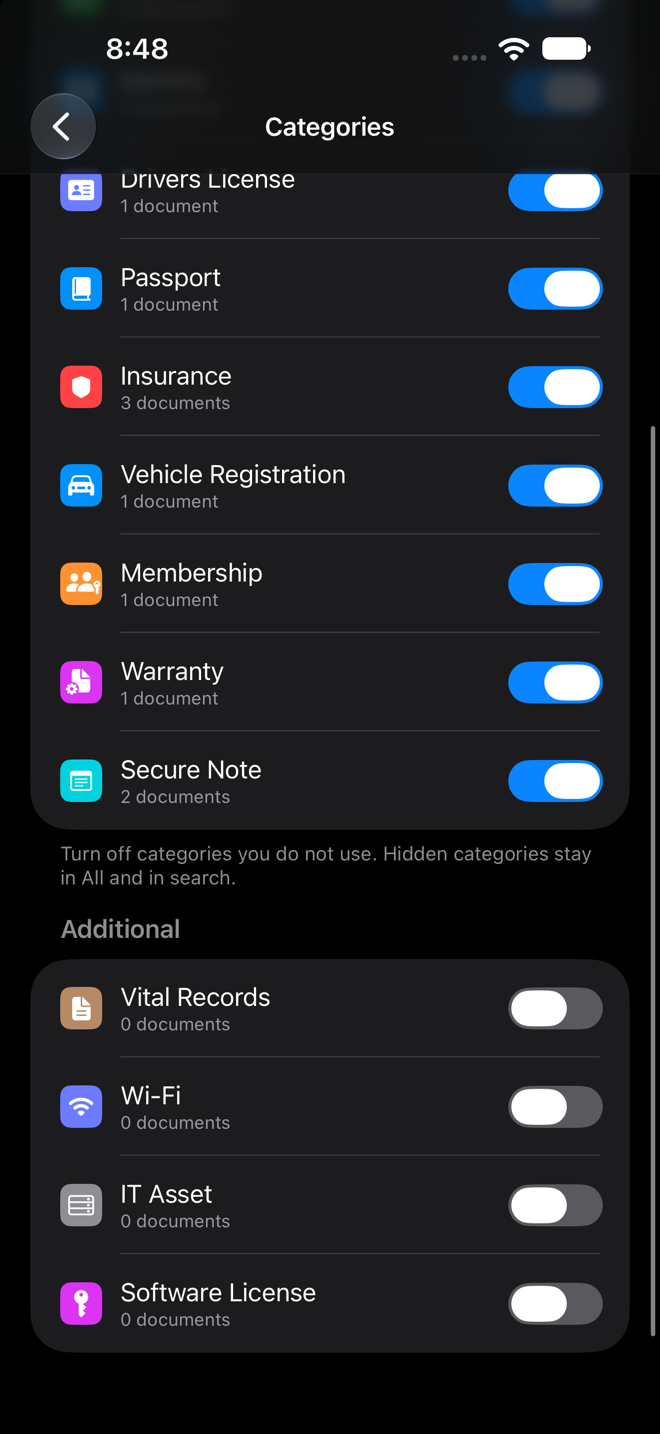
The ten everyday categories cover most households, so four more stay out of the way until you want them: Wi-Fi, IT Asset, Vital Records, and Software License. Turn them on in Settings, Categories on iPhone or iPad, and your Mac follows the same choice. Hiding a category later never deletes anything; its documents stay in All and in search.
- Wi-Fi: network name, password, and security type, plus the router's admin login. Scan the QR code on the router or another phone to fill it in, and show the network's own QR code so guests can join or you can share it
- IT Asset: servers, routers, NAS drives, printers, computers, and cameras, with host, model, serial, and a renewal date. Scan the serial number label to fill the serial
- Vital Records: birth, marriage, divorce, death, adoption, and citizenship records, with number, date, place, and issuing authority
- Software License: product and license key, with a renewal reminder
- Importing these from a password manager turns the matching category on for you
Start here: Turn on Wi-Fi and scan the QR code on your router. The next time a guest asks for the password, show them the network's QR code.
Staying Organized
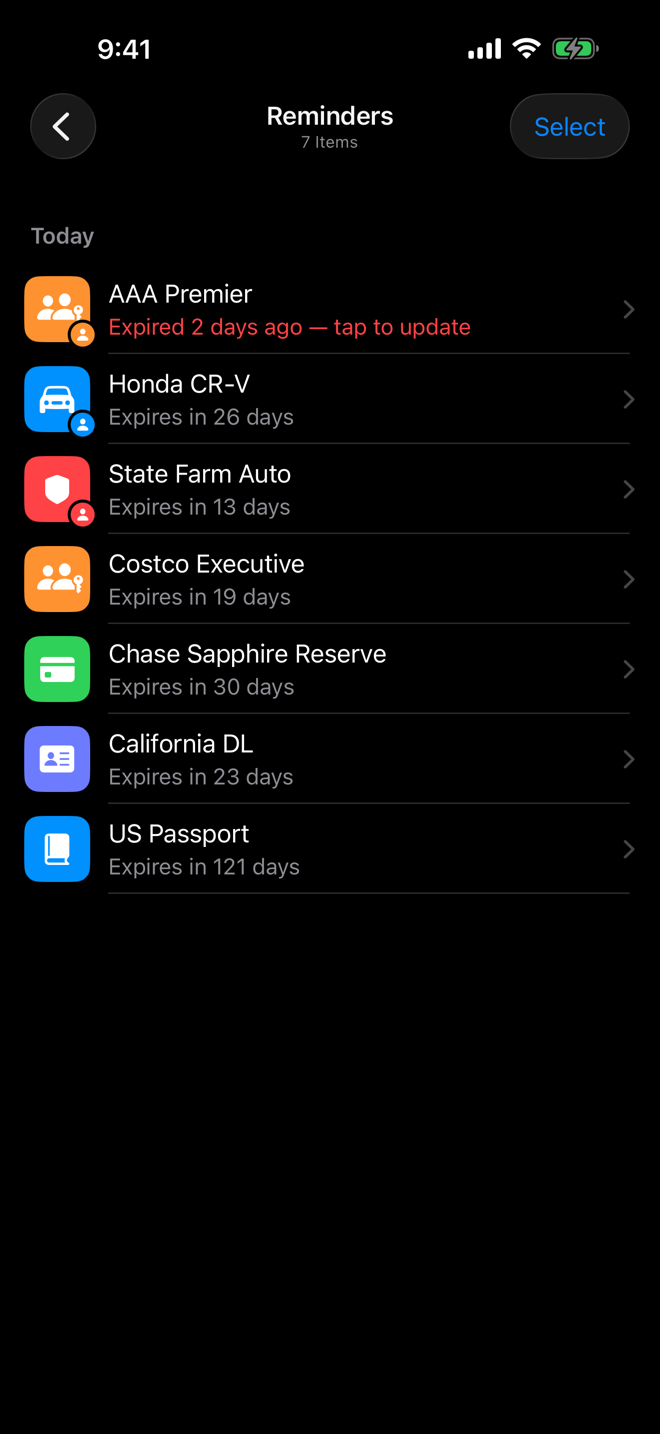
Adding documents is easy. Keeping a vault useful a year later is the hard part. When a card expires or a policy lapses, I archive it instead of deleting, so my categories only show what's current but the history is one tap away. Deleted items go to Recently Deleted first, a safety net like Photos. And the screen I actually live in is Reminders: one timeline of everything coming due across every category, which I check once a month so nothing lapses unnoticed.
- Archive expired or replaced documents to keep categories current without losing history
- Recover mistakes from Recently Deleted before they're permanently gone
- Watch one Reminders timeline; each reminder alerts when its window opens and again on the day it expires
- Star the documents you reach for most; favorites and reminders are personal to you, even on shared documents
Start here: Go through your categories once, archive anything expired or replaced, then open Reminders to see what's actually coming due.
Vault Readiness
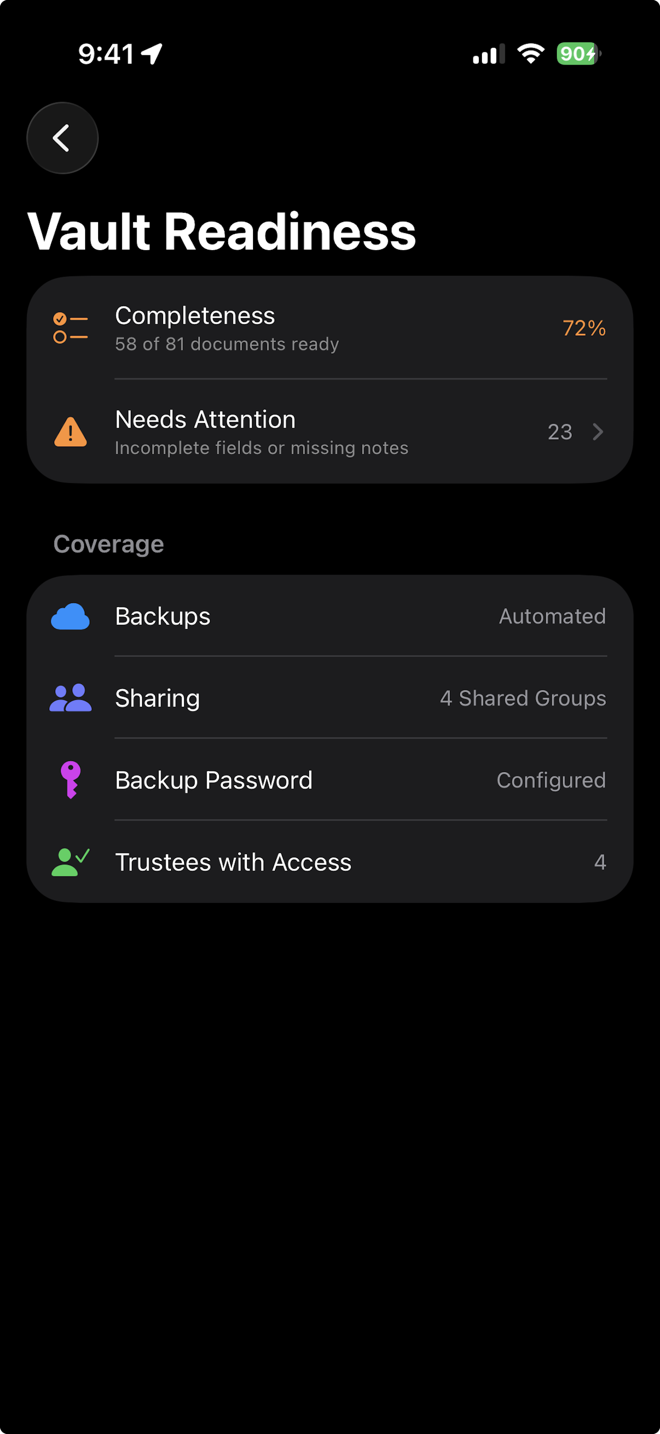
Once the vault fills up, the question changes from "what's missing?" to "what's half done?" Vault Readiness in Settings answers it. Completeness shows how many documents have their essential fields filled in, and Needs Attention lists each one that doesn't, with exactly which fields are missing. A scanned attachment on its own doesn't count, because search and expiry reminders work from the fields, not the picture.
- Completeness: how many documents have their key fields filled
- Needs Attention: each incomplete document, with the group it's in and the missing fields by name
- Coverage: whether backups are on, what's shared, your backup password, and trustees with access
Start here: Open Vault Readiness, tap Needs Attention, and fix the first three entries. It takes less time than reading this paragraph twice.
Import & Encrypted Backup
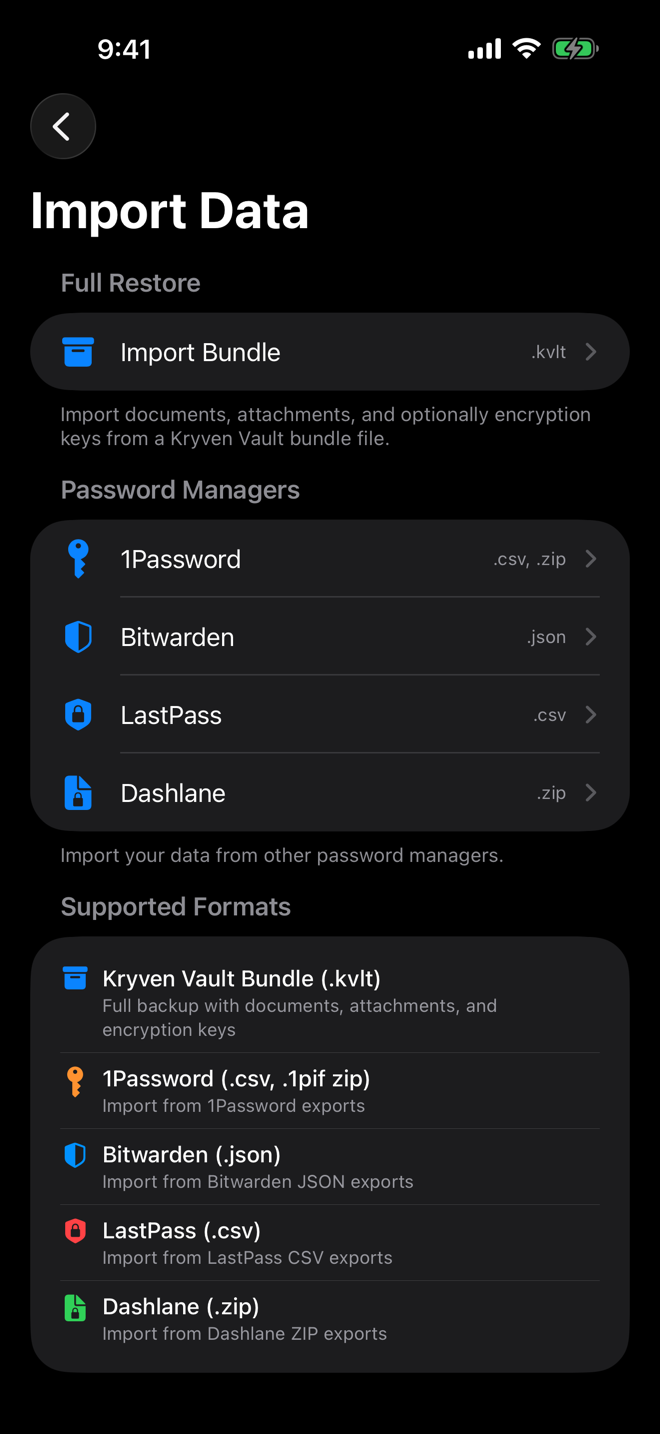
If you're coming from a password manager or another document app, you don't start from zero. Export from 1Password, Bitwarden, LastPass, or Dashlane and import it directly. Vault maps the fields into the matching categories, and the whole thing runs on your device, because there is no server. Backups are just as deliberate: your entire vault exports as one password-protected file that only you can open. You hold the key, it never leaves your device, and you store the file wherever you keep your own backups. Set it to run daily, weekly, or monthly.
- Import from 1Password, Bitwarden, LastPass, or Dashlane, with fields mapped automatically
- Everything is parsed on your device, so your export file is never uploaded
- Review the preview before you commit, then delete the plaintext export file
- Export one encrypted, password-protected backup file that only you can open
- Automated iCloud Drive backups cover your documents and attachments; export a bundle when you want a portable copy that includes your encryption keys
- Need a spreadsheet? Simple Export writes JSON or CSV, unencrypted, so treat that file with care
Start here: Export a backup right now, even an empty one, and try to open the file without the password. You can't. Then set the automated schedule.
Secure Sharing
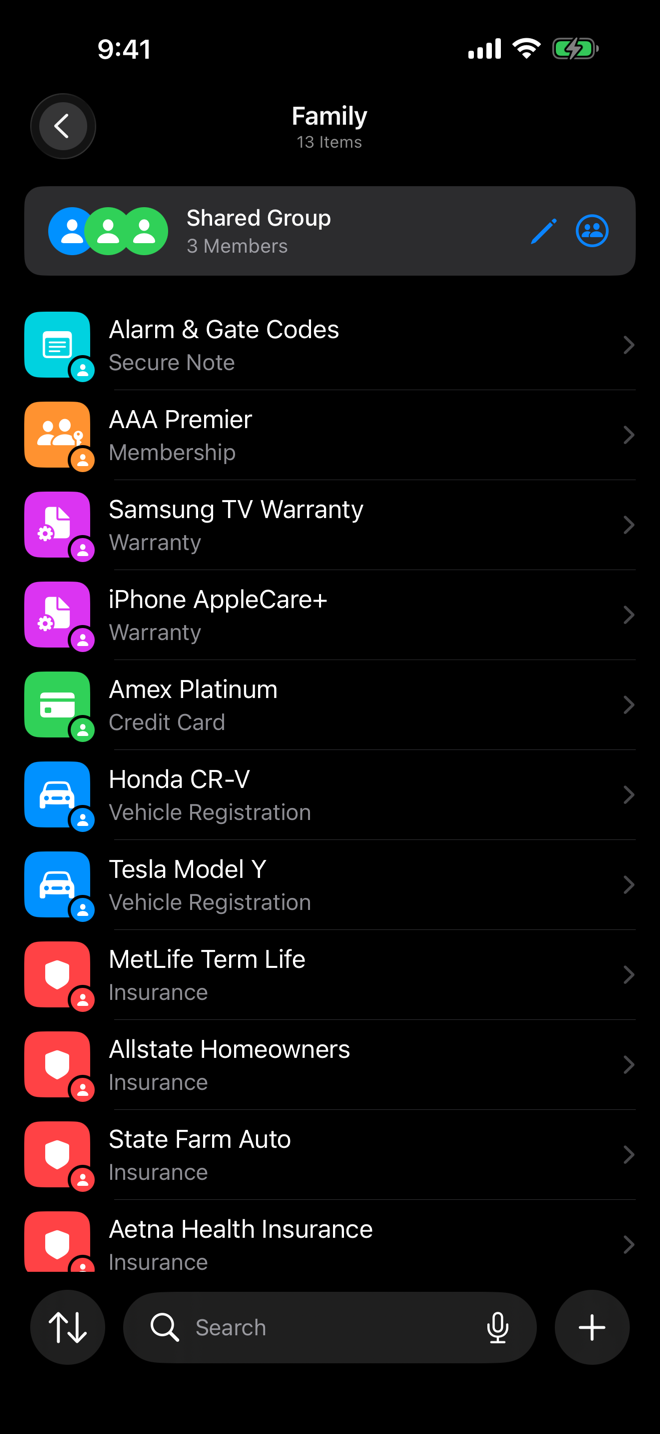
Sharing is what turned Vault from my app into our family's app, and it's where My System pays off. Because my groups are named after people, sharing is obvious: I invite each person to their own group through iCloud, and each group gets its own encryption key. My spouse's documents live in her group, shared with her, so she has her own copy. My son's passport in his group is on his phone at the airport without texting me. Anything we both need goes in Family. Remove someone and they stop receiving the group's documents right away.
- Invite each person to the group named after them: tap Share in the group, add them by email, phone number or contact, and send the link from Messages
- Putting a person's document in their group gives them their own copy
- Keep joint items like shared accounts, insurance, and registrations in Family
- Only the group owner can archive or delete shared documents, so nothing disappears by accident
- Revoke access anytime, and the person stops receiving the group's documents
Start here: In the group you made for you and your spouse, add your shared insurance and bank info. The first time they need it and already have it, you'll both feel the difference.
Everyday Features
The small things I use every day once the vault is set up.
-
FavoritesStar a document and it shows up in Favorites on the home screen. Favorites are yours alone, even on shared documents.
-
Search & Voice SearchSearch looks across every category, archived documents included. Tap the mic and say what you need.
-
AttachmentsAdd up to five photos or PDFs to a document, 5 MB each. Open one full screen to share it with AirDrop, Messages, or Mail.
-
Face ID & Auto-LockVault opens with Face ID, Touch ID, or your passcode and locks the moment you switch apps. On a Mac it locks after five minutes away, and right away when the Mac sleeps.
-
Automated BackupsPremiumVault saves to iCloud Drive daily, weekly, or monthly. Export a bundle when you want a portable copy that includes your encryption keys.
-
Reminder TimePick the time of day expiry reminders arrive, so they show up when you can act on them.
-
Storage UsageSettings, Storage Usage shows how much space your documents and attachments take, and which documents are the largest. Premium adds Optimize Images, which resizes large saved photos so they take far less iCloud space.
-
Light & DarkVault follows your device's light or dark appearance automatically. Nothing to set.
On Your Mac
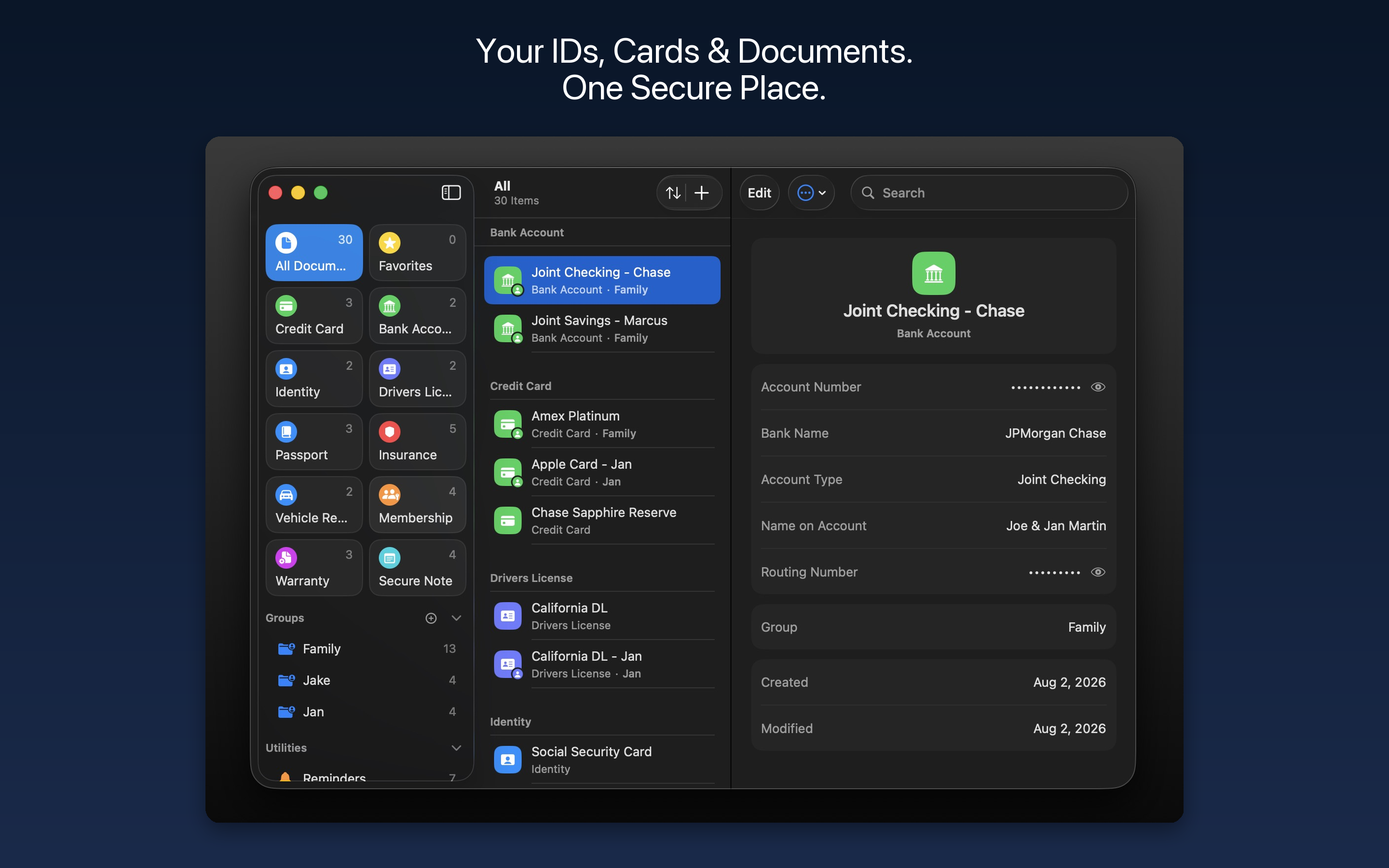
The same vault is on my Mac, synced through iCloud, and it's where I do the bigger cleanups. It's laid out like Apple's Passwords app: categories and shared groups on the left, the list in the middle, the document on the right. Click any field to copy it.
- Command-N for a new document, Command-F to search, Command-comma for Settings in its own window
- Import and Export live in the File menu
- Sort by title, date created, date modified, or category
- Vault locks when you step away, and right away when the Mac sleeps or the screen locks
Start here: Open Vault on your Mac, go to Reminders, and work through the next month of renewals with a full keyboard.
Set Up Your Vault
Start free with 10 documents and upgrade when you need more. For full plan details, see Pricing.